Finding user data in FL Studio can be a bit of a hassle if you don’t know where to look for them.
In this article, I’ll show you how to find the FL Studio user data folder inside the FL Studio software as well as in your PC’s local storage.
After reading this, you’ll be able to find it with just a few clicks.
Content Overview
Opening the User Data Folder from the Menu Bar
First, open the FL Studio software on your computer.
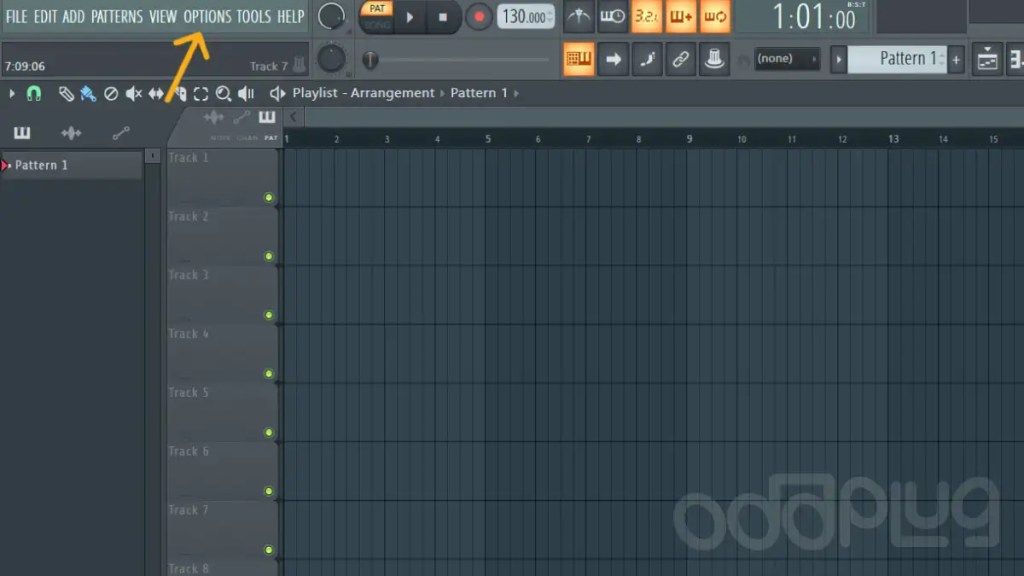
Then navigate to the Menu Bar (on the top left corner) and click on the “Options” tab (as shown in the image below).
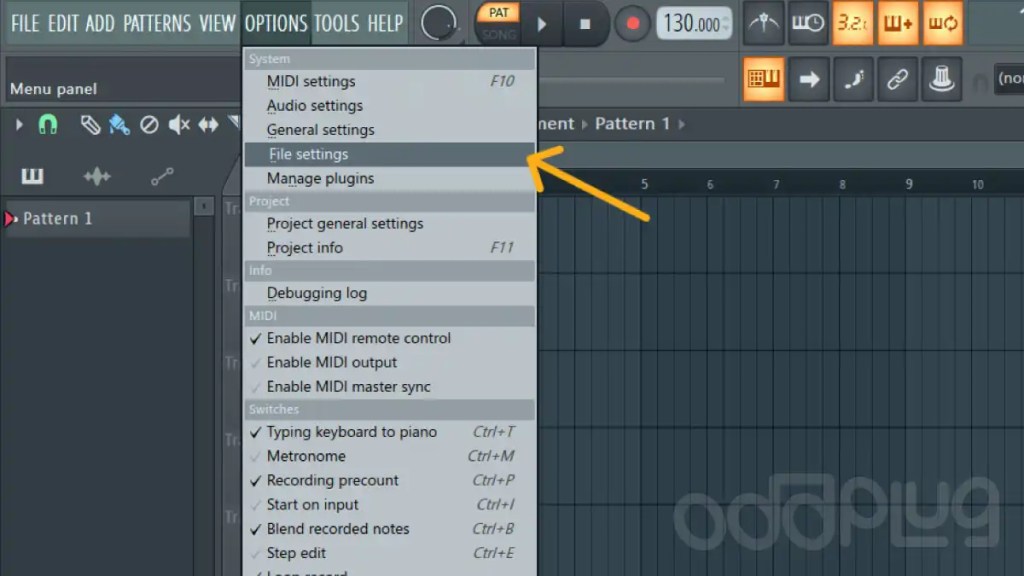
On clicking “Options,” a drop-down menu will appear. Navigate to the “File Settings.” and click it to open the settings window.
Subscribe
Enter your email below to receive updates.
Now another pop-up menu will show up on your screen.
On that pop-up menu, you’ll find an text label saying “User Data Folder,” as shown in the screenshot below.
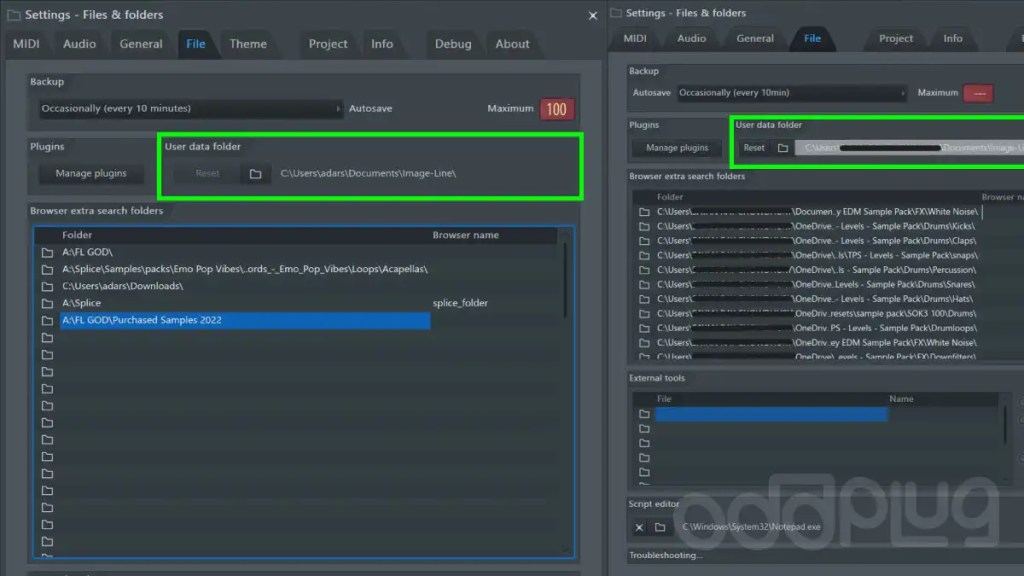
The user data file location will be shown just under that (the file location is highlighted in the screenshot above).
That’s it!
You have just learned how to find the User Data folder of FL Studio in just a few clicks.
You can now click the folder icon next to the folder location or copy and paste the location onto the file explorer on your computer, and it’ll open up the folder.
You can also open the folder directly from FL Studio, that’s explained below.
Opening the User Data Folder from the Browser Section
First, open FL Studio on your computer and go to the browser section. You will find a User data folder in the browser’s lower-left corner.

Subscribe
Enter your email below to receive updates.
Right-clicking on the user data folder will open up some options. Once this is done, select the Windows shell menu option (as shown below).
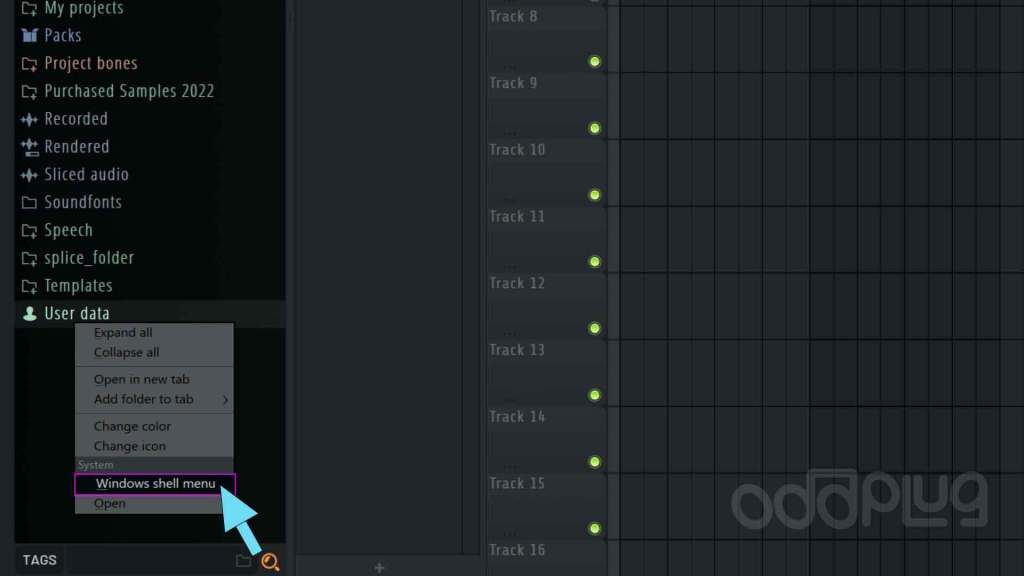
Now you will notice more options related to the OS. Select the Open function to open the user data folder in the file explorer (as shown below).


Tada! You will now see the user data folder opened inside the file explorer.
If you can’t get it right, please contact me. I can help.